
Rename the desktops
on your Mac.
Name every desktop. See it in Mission Control.
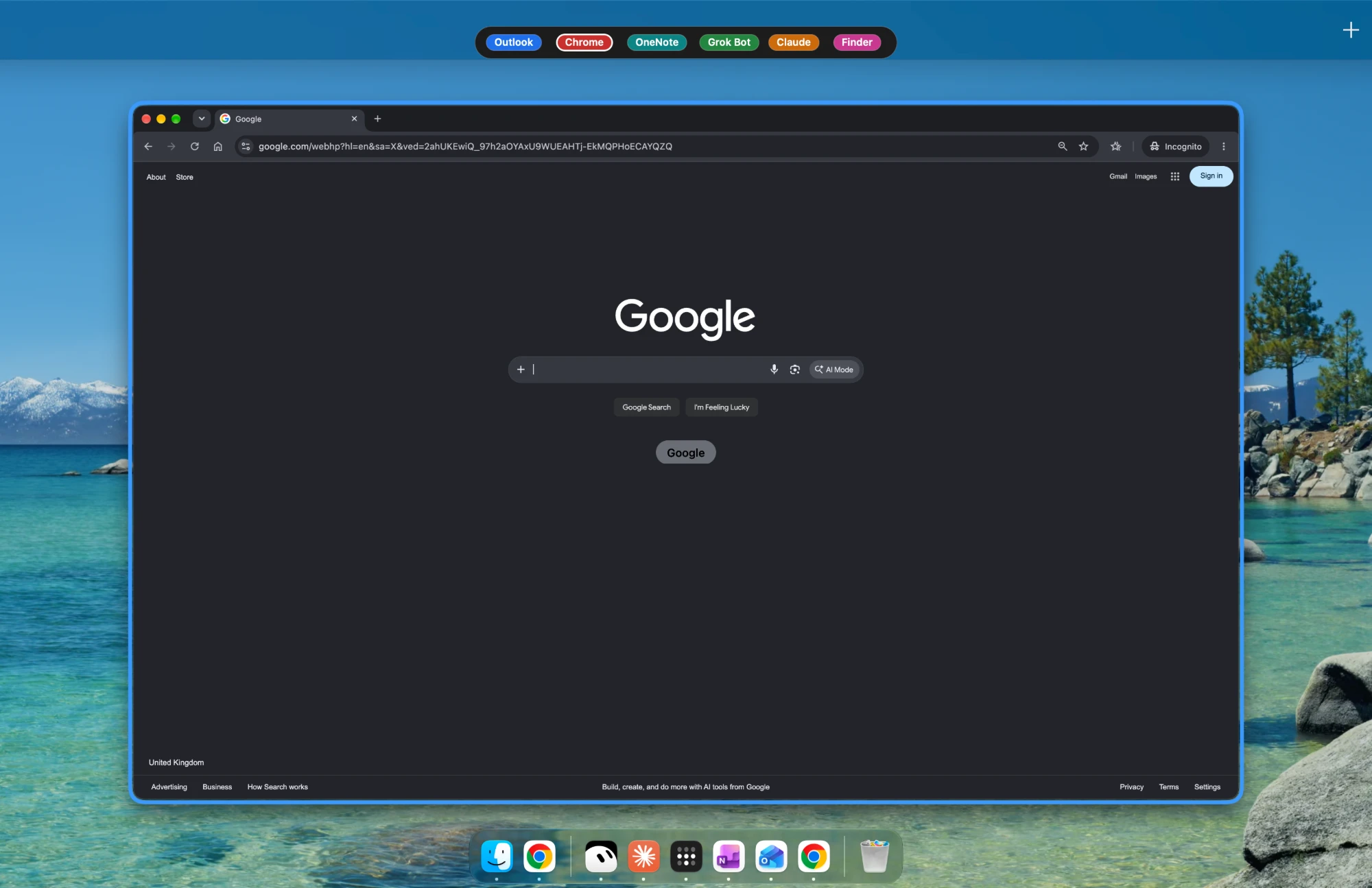
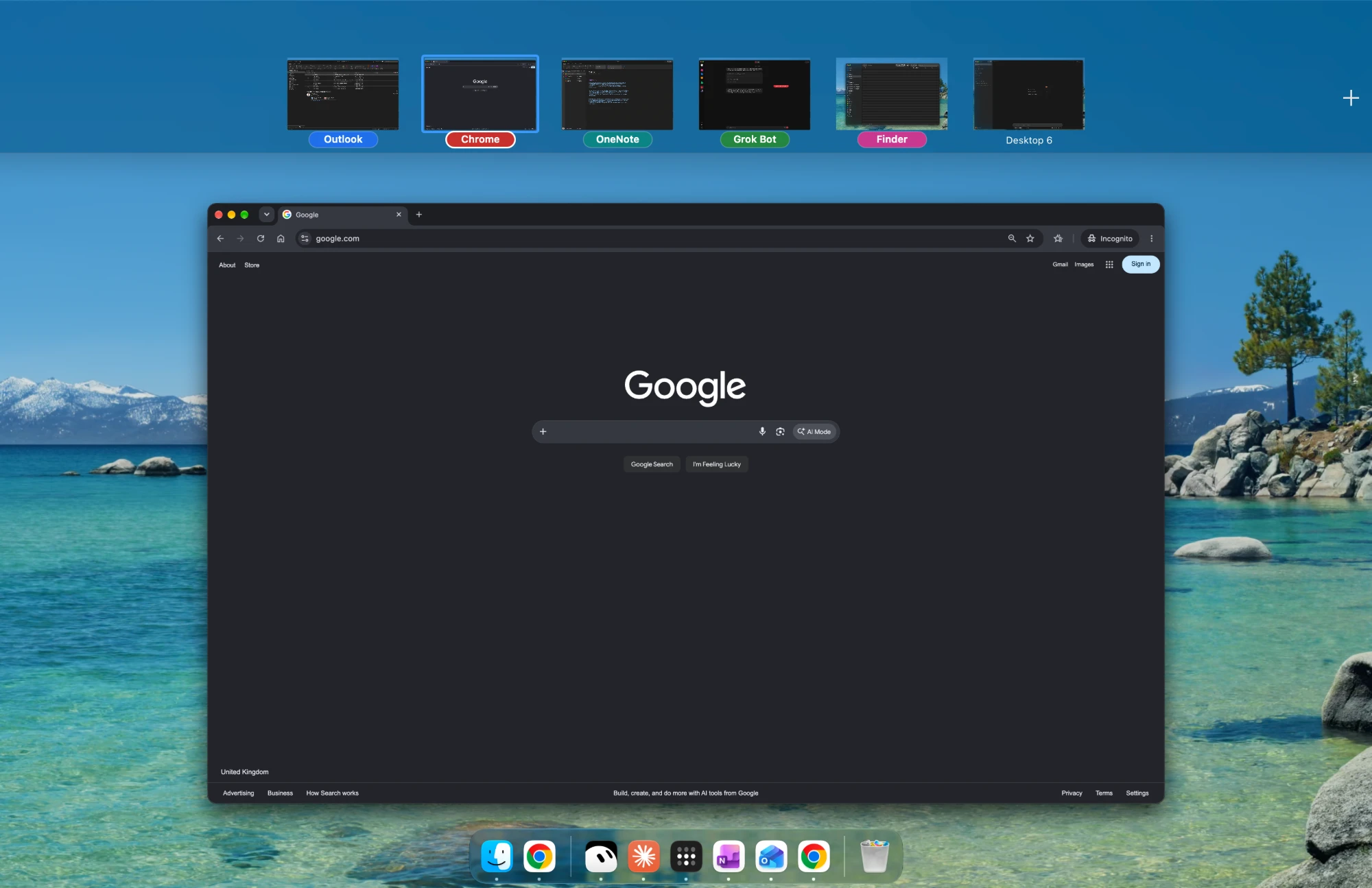
Rename Desktops running in Mission Control on macOS 27
A short swipe shows your desktops by name.
Open it fully and every desktop keeps its name and color.
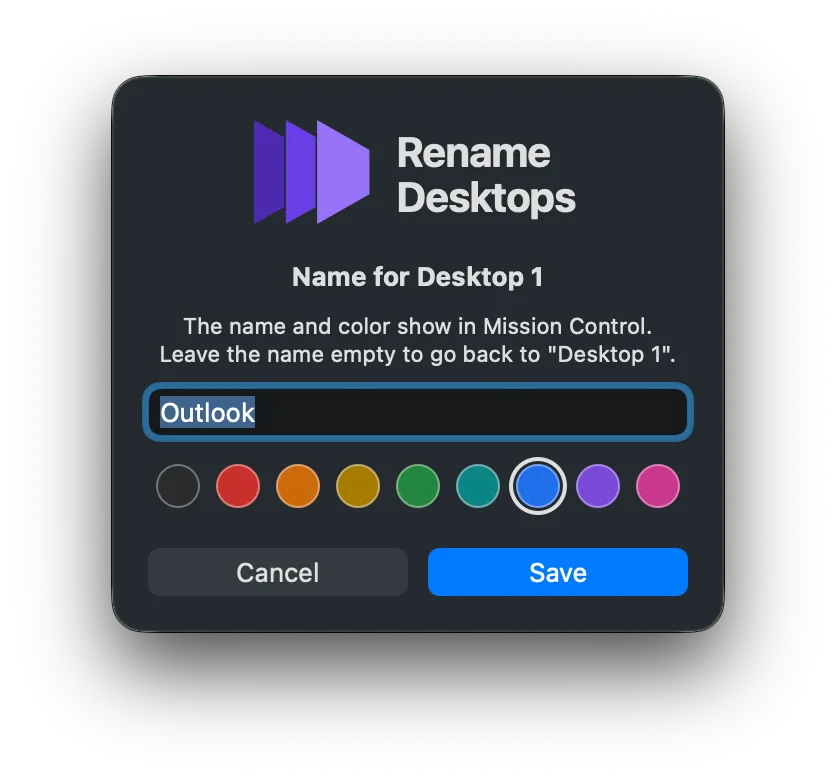
Name a desktop in seconds.
Your Mac calls them Spaces. You’ll call them Outlook, Finder, Client work.
- Click Rename Desktops in the menu bar.
- Type a name and pick a color.
- Open Mission Control. There it is.
Questions
Can you rename desktops on a Mac?
Not with macOS alone. Apple labels every desktop Desktop 1, Desktop 2 and so on, and there is no setting to change that. Rename Desktops adds the missing piece: you type a name, and it shows in Mission Control in place of Apple’s label.
How do I rename desktops or Spaces on a Mac?
Spaces is Apple’s name for the desktops you see in Mission Control, so they are the same thing. Click the Rename Desktops menu bar icon, choose Rename this desktop, type a name and pick one of nine colors. The name then shows in Mission Control in place of Apple’s label.
Is a Space the same as a desktop?
Yes. Spaces is Apple’s name for the desktops you see in Mission Control, so they are the same thing. Every Space you add gets its own name and color with Rename Desktops.
Do the names show in Mission Control?
Yes. Your own names and colors show right inside Mission Control, in place of Apple’s “Desktop 1” label. They appear both in the bar you get from a short swipe and in the fully open view.
Can I give each Mac desktop a color?
Yes. When you rename a desktop you also pick one of nine colors. The name and color show in Mission Control in place of Apple’s label.
How much does Rename Desktops cost?
It costs $4.99 once, in US dollars, after a 14-day free trial. There is no subscription. One key covers every Mac you personally use, updates to version 1 are free, and refunds are available for 30 days.
Which Macs does Rename Desktops work on?
macOS 14 or later, on Apple silicon and Intel. Tested so far on macOS 14, 15, 26 and 27.
Does Rename Desktops collect any data?
The app never connects to the internet, and it sends nothing to us or to anyone else. Your desktop names stay on your Mac. It asks for one permission, Accessibility, which it uses only to read where Mission Control puts each desktop and its label, and it never asks for Screen Recording or needs System Integrity Protection turned off.
Will a macOS update break it?
It might. Apple does not publish how Mission Control is put together, so a new version of macOS can shift what Rename Desktops relies on. If that happens we aim to release a fix. Updates to version 1 are free, and your key keeps working.
How do I remove it?
Switch off Open at login in its menu, choose Quit Rename Desktops, then drag the app to the Trash. Your names are kept in a folder called DesktopNames, inside Application Support in your own Library folder, with a small settings file in Preferences. You can delete those as well.
One price. Once.
$4.99USD
Free for 14 days. No subscription.
Requires macOS 14 or later. Secure checkout by Paddle, in US dollars.