
Rename Desktops › Guide
How to rename desktops on Mac
The free workarounds first, then the app. We make the app, and we will tell you when you do not need it.
In brief
Can you rename desktops on a Mac? Not with macOS alone. As of macOS 27, Apple still labels every desktop Desktop 1, Desktop 2, Desktop 3, and there is no setting to change it.
You have three choices: free workarounds that make desktops easier to tell apart, free open-source tools, or a small app that puts your own names into Mission Control. This page covers all three.
Why macOS has no rename button
Desktops, which Apple calls Spaces, are numbered by position. “Desktop 2” only means the second one from the left. Close a desktop or drag one along the row and the numbers shift, so the label never tells you what is on it.
People have wanted names for a long time. One question about it on Ask Different, a question and answer site for Mac users, has been viewed more than 267,000 times. Apple has not added the feature.
First, stop your desktops moving around
Whichever method you choose, do this first. By default macOS reorders desktops so the ones you used most recently come first. That undoes any system you set up.
- Open System Settings.
- Choose Desktop & Dock and scroll down to Mission Control.
- Turn off Automatically rearrange Spaces based on most recent use.
Your desktops now stay in the order you put them.
Free ways to tell desktops apart
None of these changes the label in Mission Control. They make each desktop easier to recognize, which for two or three desktops may be all you need.
Give each desktop its own wallpaper
- Switch to the desktop you want to change.
- Open System Settings and choose Wallpaper.
- Pick a picture or a plain color. It applies to the desktop you are on. If you see a Show on all Spaces switch, make sure it is off.
- Repeat on each desktop.
Plain colors work best: a blue desktop for email, a green one for a project. The catch is that you have to remember what each color means.
Leave a note on each desktop
- Open Stickies from your Applications folder.
- Type the name you want and make the text large.
- Open Mission Control and drag the note onto the desktop it belongs to.
- Make a new note for the next desktop.
The note shows in the desktop’s preview in Mission Control, though it is small, and it disappears behind your windows when you are working.
Put an app in full screen
An app in full screen gets a space of its own, and Mission Control labels it with the app’s name instead of a number. That is useful for an app you always keep open, such as Mail or a music app. It does not help for a desktop with several windows on it.
Jump to a desktop by number
Open System Settings, choose Keyboard, click Keyboard Shortcuts and then Mission Control. Turn on Switch to Desktop 1, Switch to Desktop 2 and so on. Control-1, Control-2 and the rest then take you straight there. It names nothing, but it is quick once the order is fixed.
Free open-source tools
There are free projects on GitHub that name desktops, such as DesktopRenamer and Spaces Renamer. They are worth a look if you are comfortable installing software from a developer’s own page.
Check what each one asks you to change before you install it. DesktopRenamer says it works with System Integrity Protection left on. Spaces Renamer has needed it turned off, which removes one of the main protections in macOS. We would not do that for the sake of a label.
The easy way: the Rename Desktops app
We make Rename Desktops, so weigh this part accordingly. It does one thing: it puts your own name, in a color you choose, where Mission Control shows “Desktop 1”.
- Open Rename Desktops. Its icon appears in the menu bar.
- Go to the desktop you want to name.
- Click the icon and choose Rename this desktop…
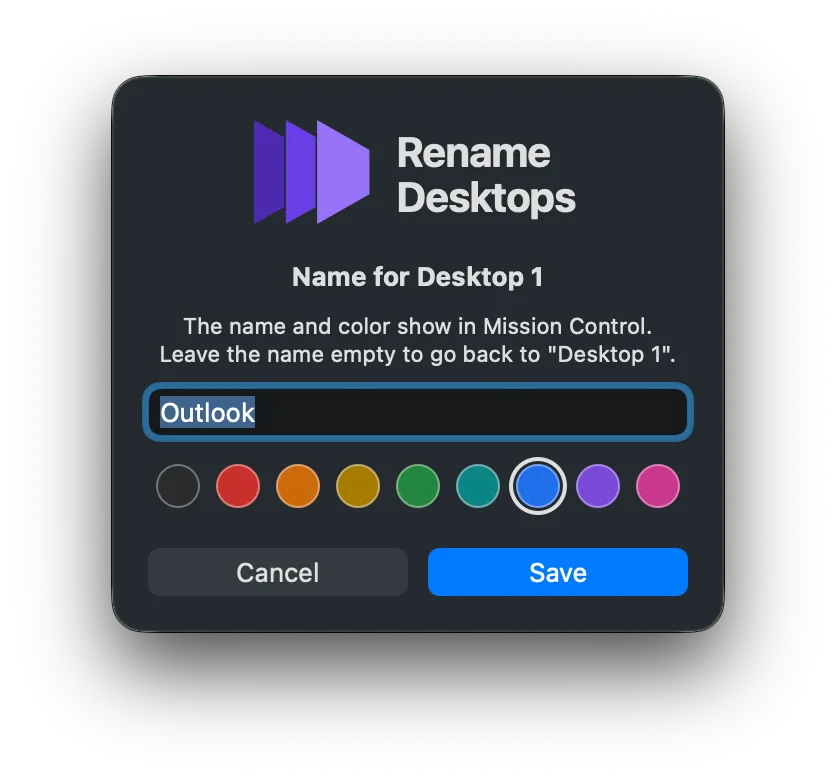
- Type a name and pick one of nine colors. It can be the app that lives there, such as Outlook or Finder, or the work you do there.
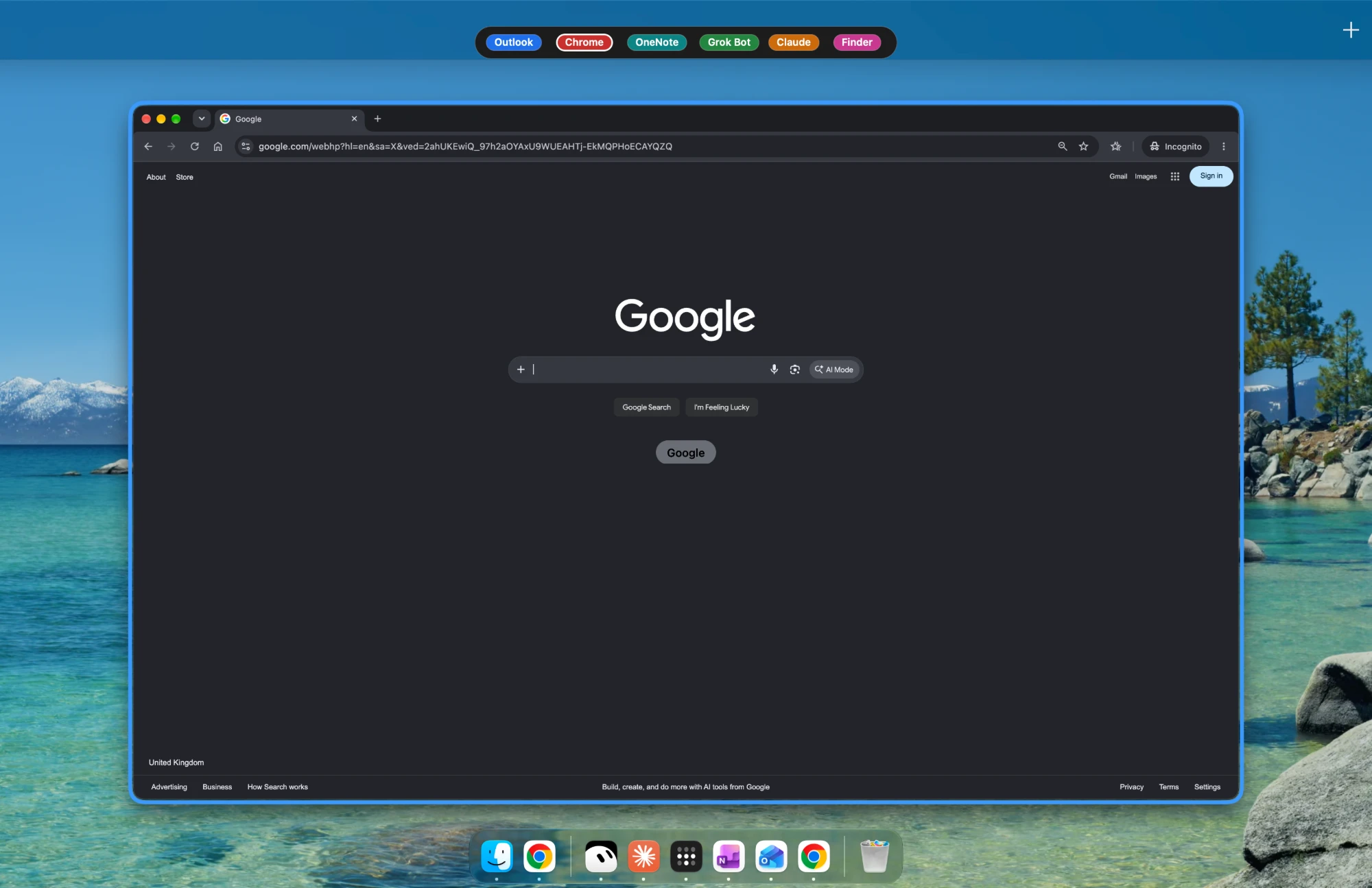
- Open Mission Control. The name shows under that desktop in place of Apple’s label.
What to know before you try it:
- It costs $4.99 once, after a 14-day free trial.
- It never connects to the internet, never asks for Screen Recording, and does not need System Integrity Protection turned off.
- It is not on the Mac App Store. Replacing Apple’s label needs parts of macOS Apple has not documented, and App Store apps have to keep to the documented parts.
- For the same reason, a big macOS update can break it until we release a fix.
Which way is right for you
| Method | Changes the label in Mission Control | Cost | What it asks of you |
|---|---|---|---|
| Wallpaper per desktop | No | Free | Remembering what each one means |
| A Stickies note | No. A small note in the preview | Free | A note left open on every desktop |
| Full-screen app | Shows the app’s name only | Free | One app per space |
| Open-source tools | Varies by tool | Free | Varies. Check before you install |
| Rename Desktops | Yes, with a color | $4.99 once | One permission |
If you keep two or three desktops, a wallpaper each is probably enough. If you keep five or more, or you rearrange them through the day, names save you from opening each one to see what is there.
How the different kinds of app compare
Apps that name desktops work in one of a few ways, and the biggest difference is what happens to Apple’s own “Desktop 1” label. Some replace it. Others add their own label on top of the desktop’s preview, so Apple’s label stays underneath, or show names somewhere else entirely.
| Kind of app | Where the name shows | Apple’s “Desktop 1” label | Needs System Integrity Protection off | Price |
|---|---|---|---|---|
| Rename Desktops | In place of Apple’s label in Mission Control, in the bar from a short swipe and in the full view | Replaced by your name | No | $4.99 once, 14-day free trial |
| Apps that add their own label | On top of each desktop’s preview in Mission Control, or beside Apple’s label | Still shows | No, for the ones we looked at | About $10 to $24 |
| Most Mac App Store apps | In the menu bar or on the desktop itself, not in place of Apple’s label | Unchanged | No | Free to about $10 |
| Free open-source tools | Varies by tool | Varies by tool | Some do | Free |
Based on what these apps’ own websites, store listings and project pages showed on November 25, 2026. We have not tested other apps. Prices are in US dollars.
Questions
Can you rename desktops on a Mac?
Not with macOS alone. As of macOS 27, Apple still labels every desktop Desktop 1, Desktop 2 and so on, with no setting to change it. You can make desktops easier to tell apart for free, or use an app such as Rename Desktops to put your own names into Mission Control.
How do I rename a desktop in Mission Control?
macOS gives you no way to rename a desktop in Mission Control. With Rename Desktops you click its menu bar icon, choose Rename this desktop, and type a name. The name then shows in Mission Control in place of Apple’s label.
Why do my Mac desktops keep changing order?
macOS moves the desktops you use most to the front. To stop it, open System Settings, choose Desktop & Dock, scroll to Mission Control and turn off Automatically rearrange Spaces based on most recent use.
Is a Space the same as a desktop?
Yes. Spaces is Apple’s name for the feature, and each Space shows in Mission Control as a desktop. A full-screen app also gets a Space of its own.
Can each desktop have a different wallpaper?
Yes. Switch to the desktop you want to change, open System Settings, choose Wallpaper and pick a picture. It applies to the desktop you are on.
Do I need to turn off System Integrity Protection to rename desktops?
Not with Rename Desktops, which runs as an ordinary app. At least one other tool has needed it turned off, so check what a tool asks for before you install it.
Name your desktops in a minute.
Rename Desktops puts your own names and colors into Mission Control. Free for 14 days, then $4.99 once.